
Start with what actually helps
You do not need to switch everything on at once. Start with the task you most often check the clock for, such as the next nap, and enable that reminder. After a few days, decide whether it helps or adds unnecessary interruptions. Treat an alert as a prompt to check what your baby needs.
A feed does not need to wait for an alert
The NHS recommends following hunger cues rather than a strict feeding schedule. Do not postpone a feed just because the app shows a later time.
Follow any individual feeding advice from your child’s healthcare professional. Log the actual feeding time, even if you enter it later, so the diary reflects what happened rather than what was planned. NHS: responsive feeding
The next sleep time is an estimate
The NHS explains that babies have different sleep and waking patterns. An app prediction cannot guarantee sleep at a particular minute.
Use the reminder as a prompt to consider quieter activities and getting ready for sleep. In SweetWonder, an enabled personal plan is used in the calculations. Check that the recorded wake-up time and plan settings are up to date. NHS: helping your baby to sleep
Nappy supplies are different from nappy changes
In SweetWonder, this category reminds you when nappy supplies are running low. It is not a timer telling you when to change your baby. Update the recorded stock when you add a new pack, and log completed changes in the diary.
Set up SweetWonder step by step
Open Settings → Reminders. Permission on the phone and enabling a category in the app are separate settings: check both.
- Enable only the categories you want, such as naps or feeding.
- Choose advance notice of 5, 10, 15, 20 or 30 minutes. This is how long before the estimated time you receive a reminder, not the gap between feeds.
- Review scheduled reminders: which child, date and time they refer to.
- If an expected reminder is missing, open the explanations on the screen. Check the last entry and plan rather than logging an event that did not happen.
What “15 minutes before” means
A fictional calculation example, not a suggested sleep time or an age-based routine.
- 14:15The reminder time if the estimated nap is at 14:30 and you have chosen 15 minutes of advance notice.
- 14:30The estimated nap time. Actual sleep may start at a different time: record when it really happens.
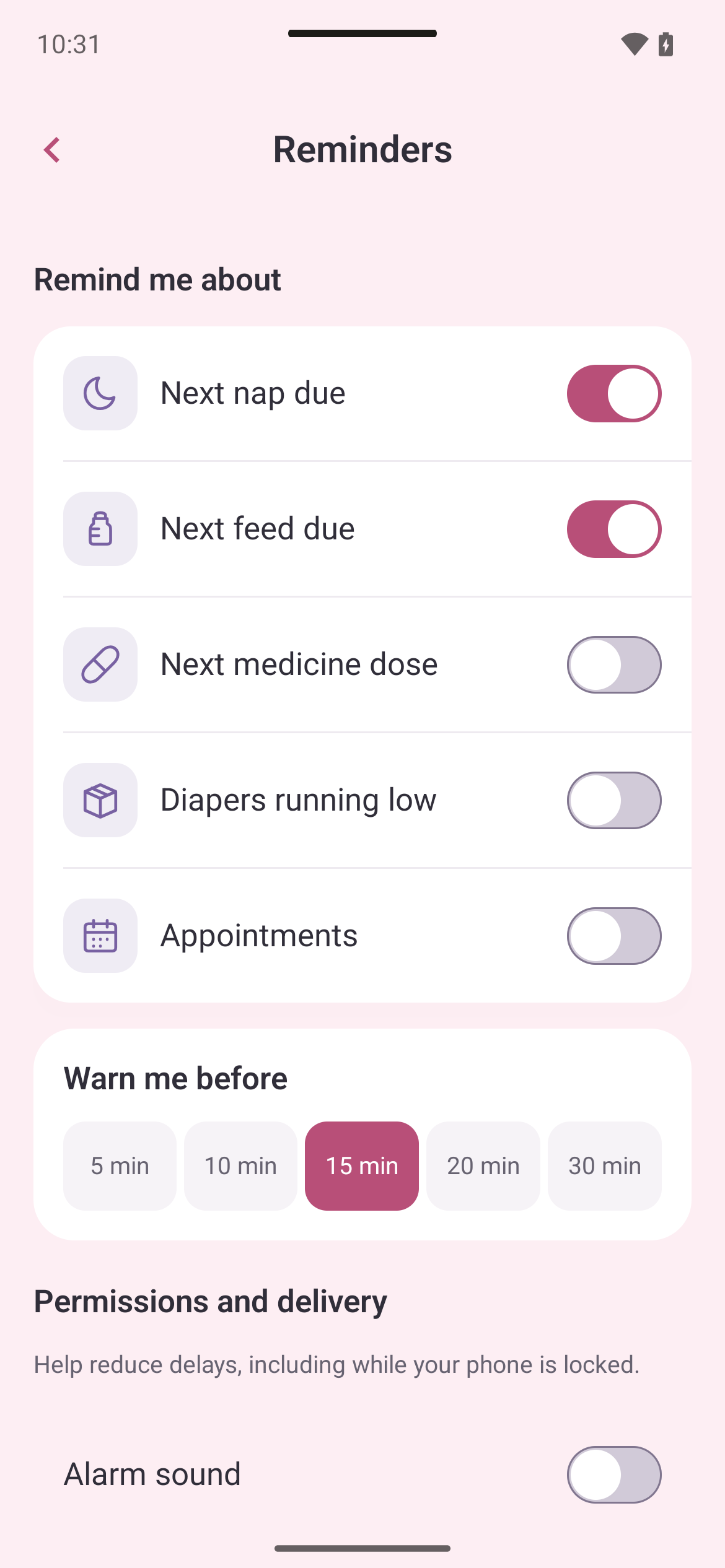
Inside the Reminders screen
Choose reminder categories and how much advance notice you want. Delivery settings and scheduled reminders are further down the screen.
- Separate switches for naps and feeding.
- Advance notice of 5, 10, 15, 20 or 30 minutes.
- Buttons leading to system notification settings.
An actual Android app screen with sample settings. The iPhone layout may differ.
Open the full-size screen ↗iPhone: check notifications and Focus
If a reminder is scheduled in the app but no notification appears, check these settings on your iPhone: Apple: notification settings
- Open Settings → Notifications → SweetWonder and turn on Allow Notifications.
- On the same screen, check Sounds and Lock Screen alerts according to your preferences.
- In Settings → Focus, review the active mode and whether it allows notifications from SweetWonder.
- In Settings → Notifications → Scheduled Summary, check whether SweetWonder is included. Remove it from the summary if you want notifications to appear immediately.
Android: permissions, sound and alarms
In SweetWonder, open Settings → Reminders. The buttons there take you to the relevant system settings:
Menu names vary by phone and system version. After making changes, return to the app and check scheduled times. Settings cannot guarantee perfect timing in every circumstance; do not rely solely on the app for individual medical instructions. Google: Android notifications Android: exact alarm access
- Tap “Notification settings”. Allow SweetWonder notifications and check sound and the categories you need.
- If “Allow exact alarms” is shown, open it and grant “Alarms & reminders” access. This is separate from notification permission.
- Check Do Not Disturb and notification volume. If alarm mode is enabled in the app, check alarm volume too.
- If the phone restricts the app in the background, review SweetWonder’s battery settings and the instructions for your model.
A reminder for the person doing the caring
In “Care for me”, you can set personal reminders for water, food or a break. Choose a moment that suits you. This is support for your day, not a medical target or another obligation.
Fewer alerts, clearer care
Review the settings with the other parent. Agree who checks supplies and who takes the next care task; log it once it is done. When your baby’s rhythm changes, review the plan and reminders again. Keep the ones that help you.
Start with one useful reminder, check permissions and record actual events. Follow your baby’s needs and use the diary to keep track of the day.
Organise your day with SweetWonder
Download SweetWonder for iPhone or Android and set up the diary and reminders for your family.
All articles
SweetWonder helps you keep records and follow everyday routines. It is not a medical device and does not make diagnoses. If you are concerned about yourself or your baby, contact a healthcare professional.